How to set up Sites.Selected permissions
NavSherpa can work using more limited Sites.Selected permission in Microsoft Entra. This is a preferred option from a security point of view because it allows you to set up permission per SharePoint site. If compared with the default Sites.FullControl.All permissions this gives access just to the sites that NavSherpa really needs – but the setup is a bit more difficult.
Add the permissions to Entra app registration
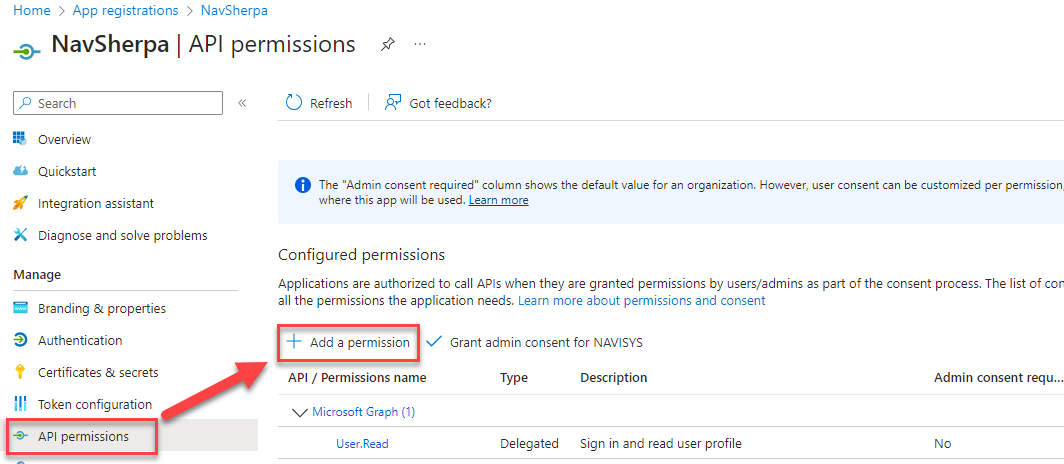
First go to the API permissions of your app registration tab to grant the permissions to SharePoint and click Add a permission.
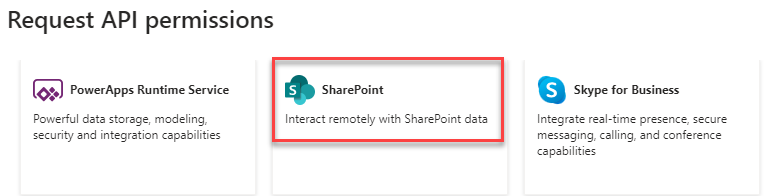
From the list of applications select SharePoint.
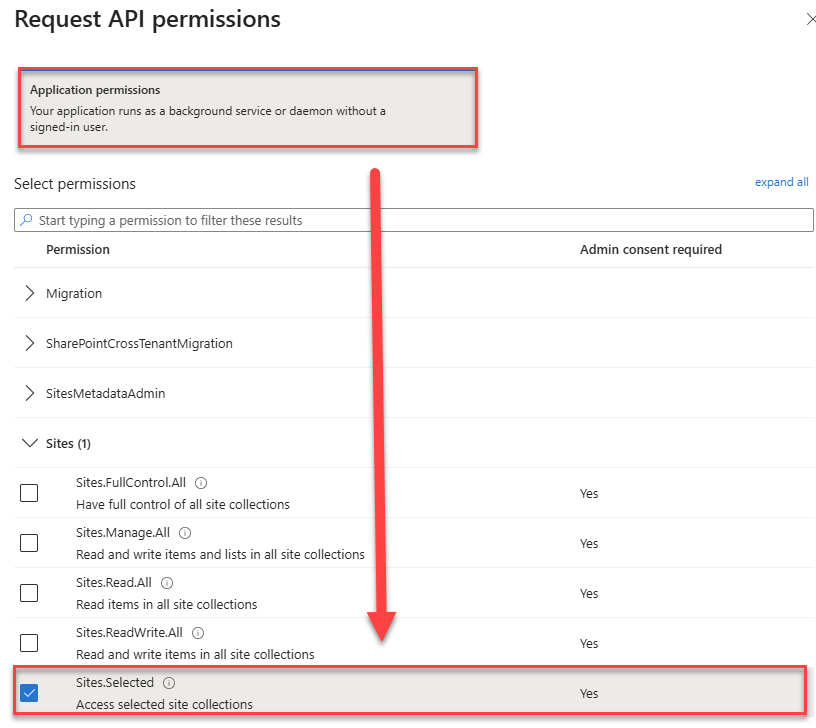
Then choose Application permissions and select Sites.Selected permission from the list. Confirm with Add permissions button.
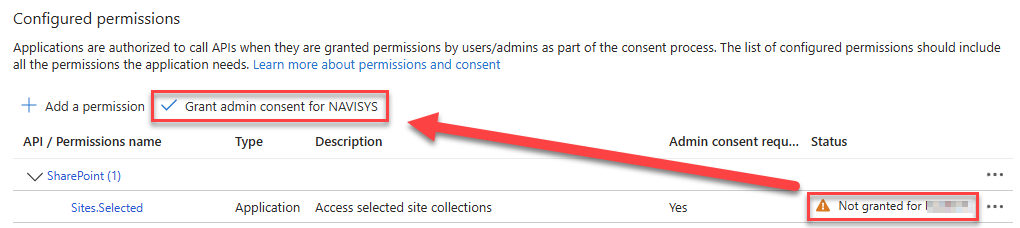
Now you need to get admin consent for the permissions. For that use the action Grant admin consent for – if you are a tenant administrator, the consent will be granted automatically, otherwise it will send a request to the admin and he needs to confirm that.
If you already assigned Sites.FullControl.All permissions to the app, remove it or revoke the admin consent.
Grant access to SharePoint site
Now you need to grant the app registration access to the selected SharePoint site(s). This can be done via
Microsoft Graph API by a user that has administration role on
SharePoint. To access the API you can use
Microsoft Graph Explorer.
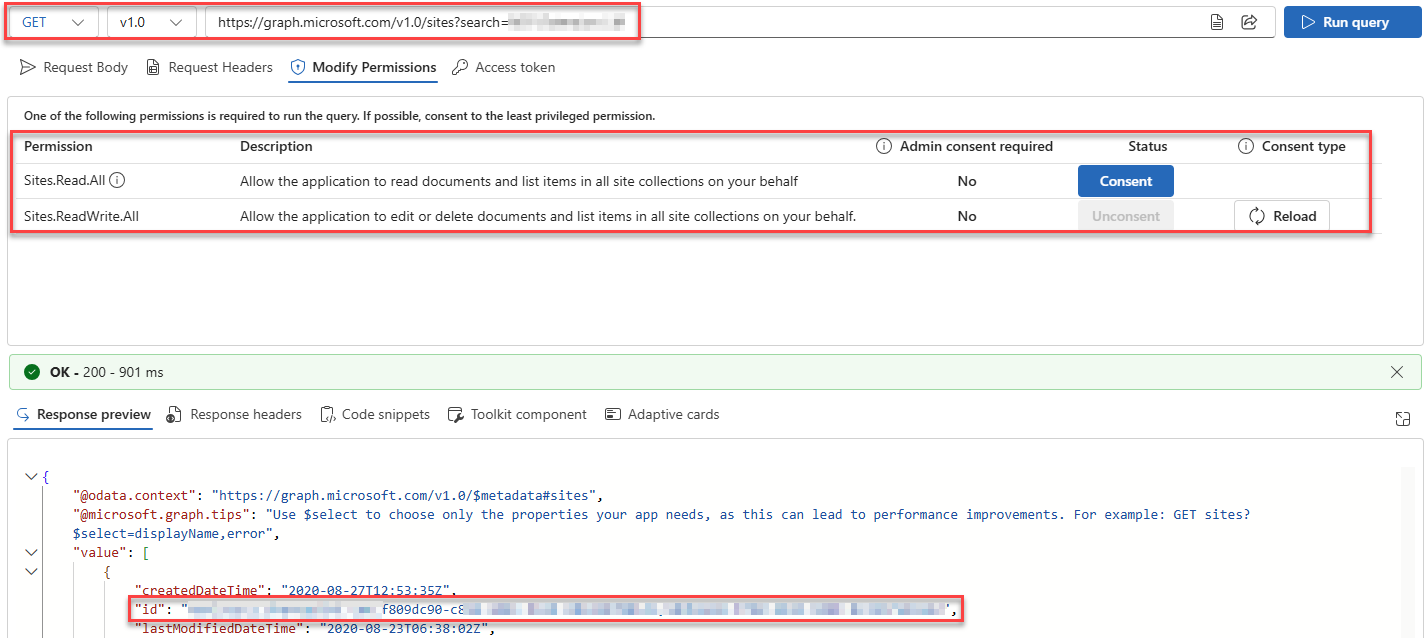
In the first step please get the SharePoint site id by sending GET request to https://graph.microsoft.com/v1.0/sites?search={Your site collection name}. The site id will be in the id node – and you may need to confirm some API permissions on the Modify Permissions tab to make the request possible.
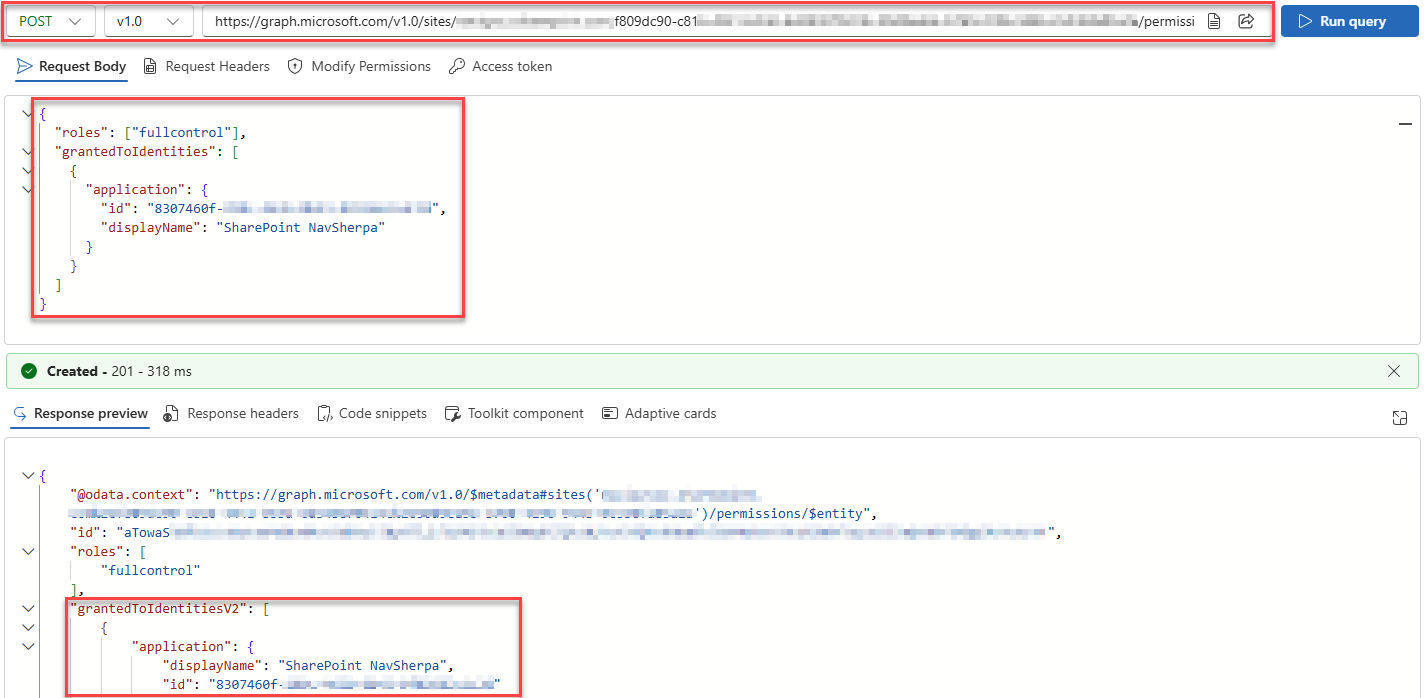
In the second step, grant the permissions to your app registration by sending a POST request to https://graph.microsoft.com/v1.0/sites/{Your site id}/permissions with following request body:
{
"roles": ["fullcontrol"],
"grantedToIdentities": [
{
"application": {
"id": "{Your app registration id}",
"displayName": "{Your app registration name}"
}
}
]
}
Please note, that to use all NavSherpa features you will need fullcontrol access role, the basic read or write roles won't be enough.
And that's it. If you have already set up NavSherpa connection with certificate, you can test it in the access token wizard – see guideline
How to connect to SharePoint.
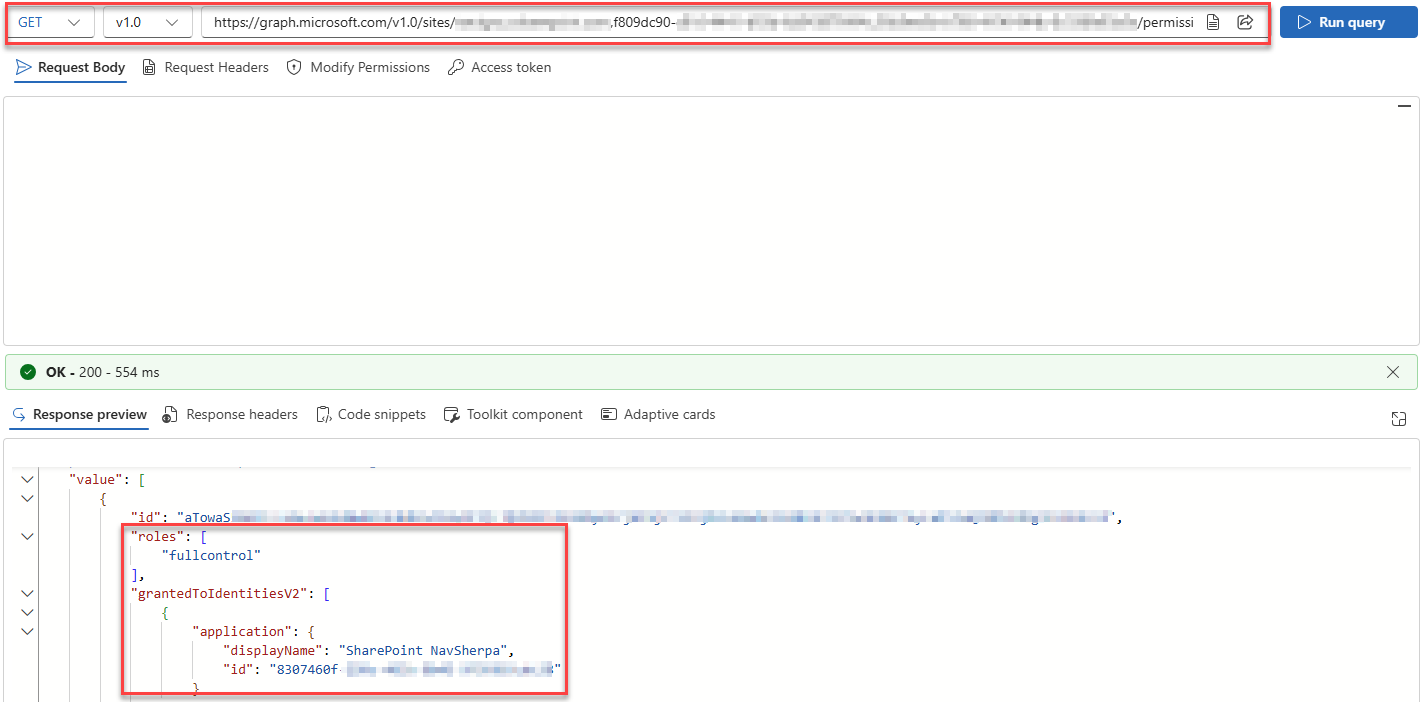
If needed, you can also check assigned permissions by sending GET request to https://graph.microsoft.com/v1.0/sites/{Your site id}/permissions.